AI Plan Creator

Furniture removal

AI furniture removal: the room in your photo, emptied

Upload a photo of a furnished or cluttered room and choose Empty a room in the photo studio. The AI is asked to take out the furniture, rugs, decor and clutter, keep the floors, wall finishes, fixed lighting and built-in fittings, and fill in what was hidden, so that the room itself can be seen. Keep the empty picture as it is, or stage it again in a new style.

  • Free to start
  • No card needed
  • Nothing to install
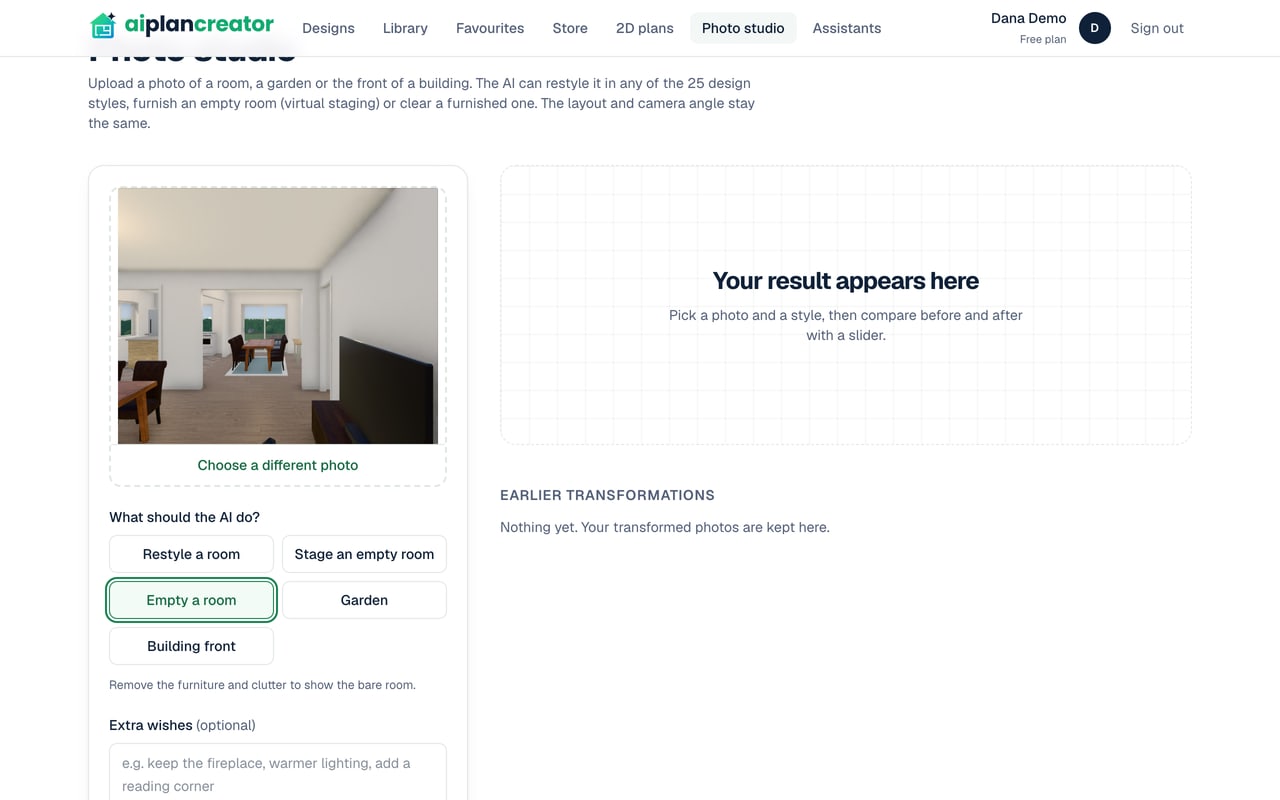
The photo studio on the Free plan with a view of a room from one of the app's designs chosen as the photo, Empty a room selected and its hint: Remove the furniture and clutter to show the bare room

How it works

4 steps from a furnished photo to an empty room

  1. 1

    Upload the photo

    A JPEG, PNG or WebP photo of the room, up to 10 MB, dropped in or chosen from your files.

  2. 2

    Choose Empty a room

    There is no style to pick: the AI clears the room. Add extra wishes if you like.

  3. 3

    Compare before and after

    Drag the slider across the picture to see what went and what stayed, then download it.

  4. 4

    Stage it, or leave it bare

    Upload the empty picture again and choose Stage an empty room to furnish it in one of 25 styles.

What Empty a room takes out, and what it keeps

The instructions the image model is given are plain: remove all the furniture, rugs, decor and clutter, so that the room is completely empty and clean; keep the walls, windows, doors, ceiling and camera angle exactly where they are; keep the floors, wall finishes, fixed lighting and built-in fittings; and fill in what was hidden realistically.

Filling in means the AI paints the floor and the wall that were behind a sofa or under a rug. It has never seen them, so what it paints is its best guess. Check the picture against the room before you use it: a built-in wardrobe or a kitchen bench should still be there, and a light fitting, a skirting board or the pattern of a floor can come out slightly different. Never use an emptied picture to hide damage or wear, which the terms of use do not allow in a listing.


Then stage the empty room

An emptied photo is a clean start for virtual staging. Download it, upload it again, choose Stage an empty room and a style, and the AI is asked to add real furniture, rugs, lighting, art and plants that suit the room's size and use, without changing its floors, wall colours or fixed fittings. Each step makes a picture of its own, so emptying a room and then staging it uses two AI images.

To give a furnished room a new look, there is no need to empty it first: Restyle a room replaces or restyles its furniture, textiles, lighting and decor in one picture. Each result is compared with the picture it was made from on the before-and-after slider.

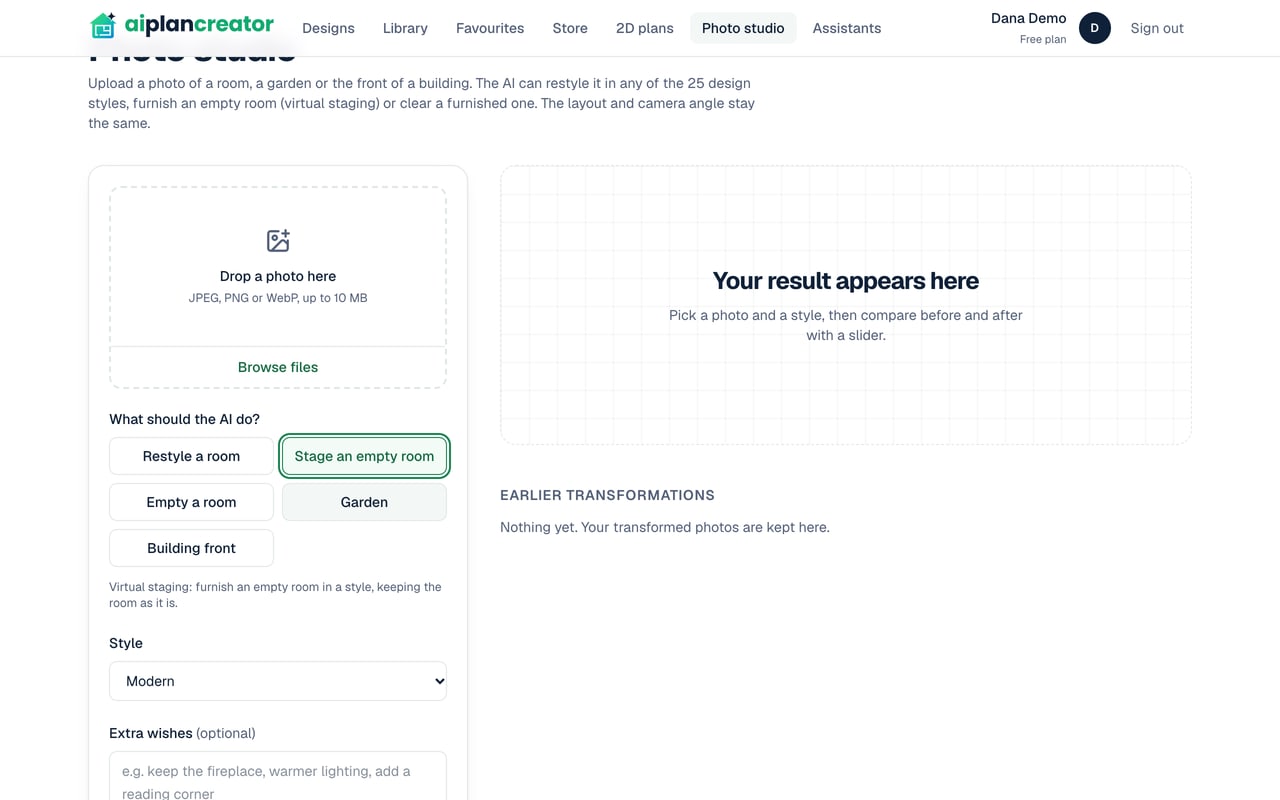
The photo studio on the Free plan with Stage an empty room selected and its hint, Virtual staging: furnish an empty room in a style, keeping the room as it is, the style Modern, and the box to drop a photo in

A floor plan with no furniture

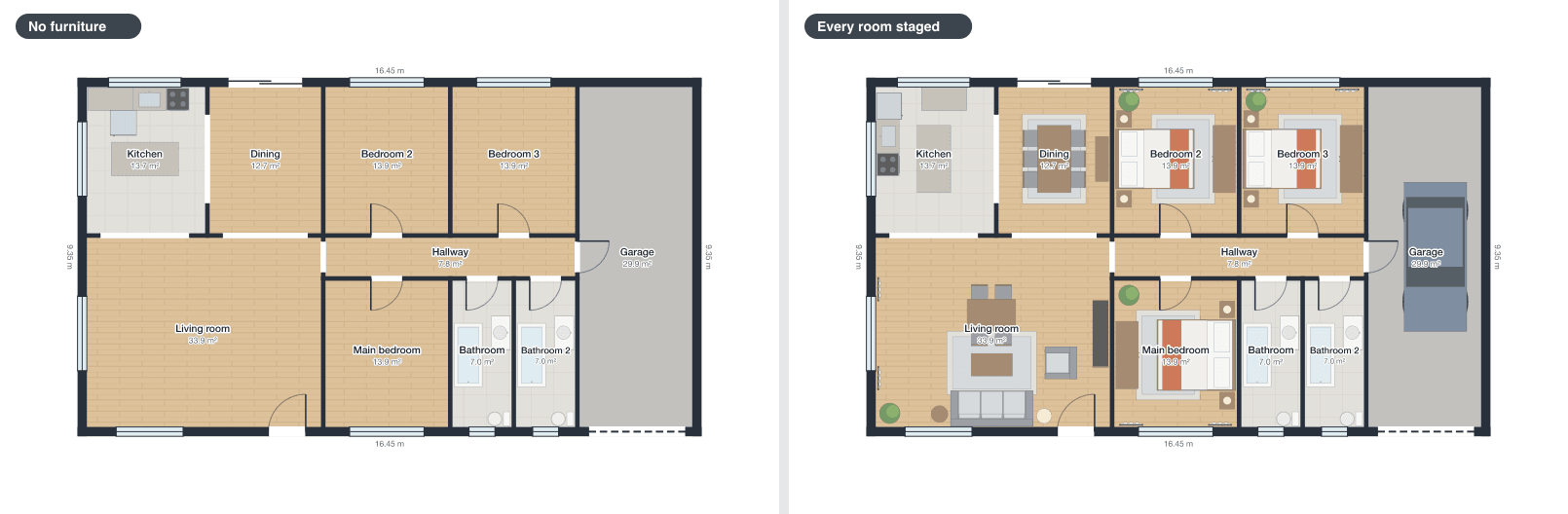
For a design rather than a photo, the 2D floor plan page draws a storey with no furniture: only the rooms' fittings stay, the kitchen, bathroom and laundry, stairs, lifts and fireplaces, and what is outside the rooms is drawn as it is. Nothing is asked of the AI, and the design itself keeps its furniture. Choose Restage every room instead and the same plan is drawn with every room furnished, so a listing can show both.

In the editor, Clear furniture empties the selected room of everything but the parts of the building, such as its stairs, and the editor's undo puts it all back.

The same house twice: on the left with no furniture, on the right with every room staged by the rules of layout

What it costs, and where the photo goes

Emptying a photo is one AI image from your plan's allowance, which is smaller on the Free plan, and only a picture that comes back is counted. The photo is sent to Google's Gemini image model to be changed, as the privacy policy says. Your photo and the emptied picture are kept in your account, listed under Earlier transformations. Drawing a plan with no furniture, or clearing a room in the editor, uses no AI request.

Questions and answers

Good to know

For anything else, see the questions on the home page or send us a message.

Can AI remove furniture from a photo of a room?

Yes. In the photo studio, Empty a room asks the AI to take out the furniture, rugs, decor and clutter, keep the floors, wall finishes, fixed lighting and built-in fittings, and fill in what was hidden. It uses one AI image.

Will it keep built-in fittings?

It is asked to keep the built-in fittings, the fixed lighting, the floors and the wall finishes, and to leave the walls, windows, doors, ceiling and camera angle where they are. Check the picture all the same: an AI image model can still take out or change something that belongs to the room.

Can I remove the furniture and then stage the room?

Yes. Download the emptied picture, upload it again and choose Stage an empty room and a style. Each step is a picture of its own, so the two use two AI images.

Is AI furniture removal free?

Emptying a photo uses one AI image from your plan's allowance, and the Free plan, which costs nothing and needs no card, has a smaller allowance than the paid plans. Drawing a 2D floor plan of a design with no furniture uses no AI request.

Can I plan a renovation or build from an emptied photo?

Not to scale. An emptied photo is an AI picture for exploring ideas: its sizes are not measured and what was behind the furniture is guessed. To plan the work, draw the room in the editor, whose drawings are for design exploration, and take them to a designer or architect.

Empty a room in a photo

Free to start, no card needed. Or begin from a ready-made design in the store and change anything you like.