

How much does virtual staging cost? A design's rooms or a photo of a real room
Stage a design's rooms with no AI request, or a photo of a real room in the photo studio. What each costs, and how to show staged photos honestly.
· 7 min read
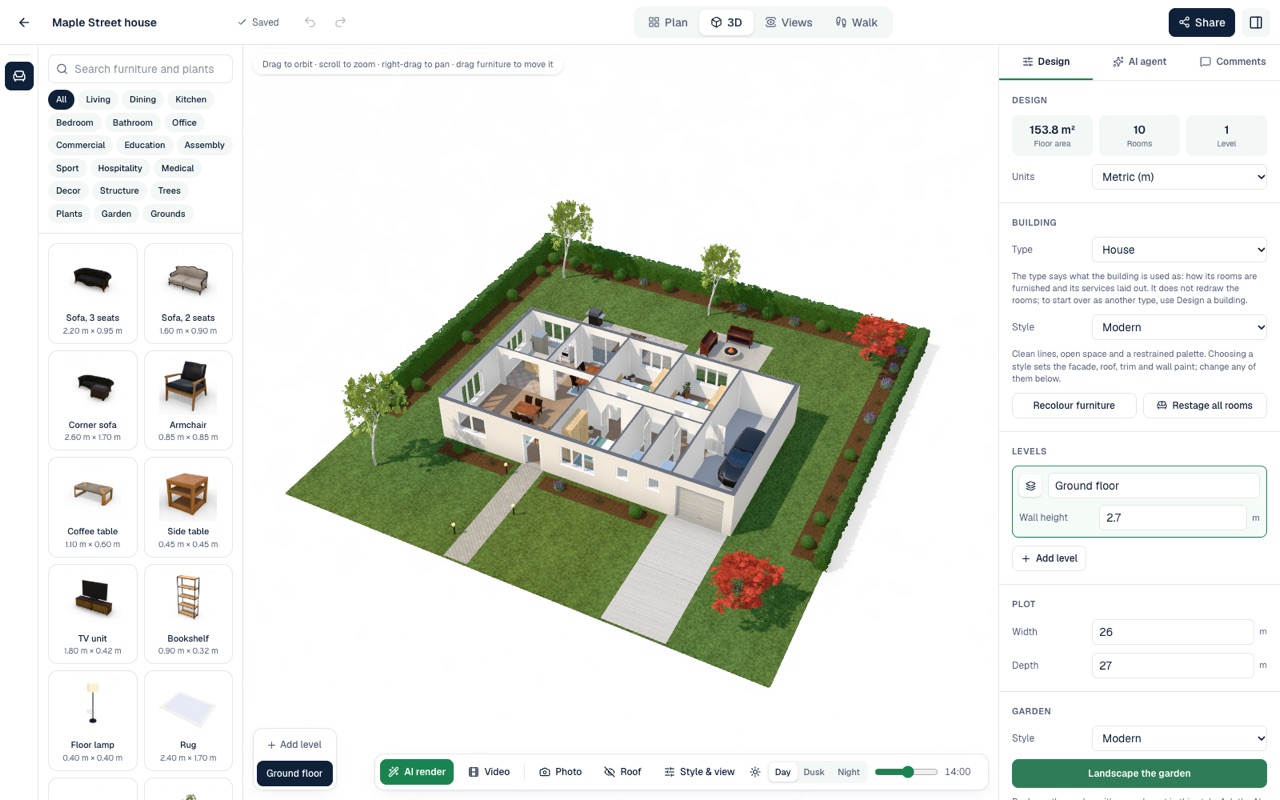
Virtual staging means showing a room furnished in a picture when in real life it is empty, or not built yet. AI Plan Creator stages rooms in two quite different ways: it furnishes the rooms of a design in the editor, and it stages a photo of a real room in the photo studio. One is a plan to scale that you can change piece by piece; the other is a new picture made by an AI image model. They suit different jobs and cost different things.
Two kinds of virtual staging
| Staging a design's rooms | Staging a photo of a room | |
|---|---|---|
| You start with | A floor plan in the editor | A photo: JPEG, PNG or WebP, up to 10 MB |
| You get | Furniture on the plan and in 3D, each piece at its real size | A new picture of the room, furnished |
| Made by | Rules of layout, in your browser | An AI image model |
| What it uses | No AI request, with the buttons | One of the month's AI images |
| Best for | Planning a home or a renovation | Showing an empty room as it could look |
Staging the rooms of a design
Any design can be staged, from one you drew to a finished design from the store.
- Select a room on the plan. Its panel has a Staging section.
- Choose one of 25 styles, from Japandi and Coastal to New Zealand Contemporary and Modern Farmhouse, and a budget: basic, standard or premium.
- Press Stage this room.
To do the whole house at once, select nothing and press Restage all rooms, beside the building's style: every room is staged in that style on a standard budget.
The furniture is placed by rules of layout, not painted into a picture. The main pieces, such as a bed, a sofa or a dining table, go against the walls, and the pieces that belong with them are set round them: nightstands either side of the bed, a coffee table in front of the sofa and a TV unit across from it. Nothing may block a door or overlap another piece, and tall pieces are kept away from windows. Each room gets what its type needs, and in a shop, a café or an office the rooms are fitted out for business.
The budget decides how much goes in. A basic budget gives the essentials; standard adds pieces such as a rug, an armchair, side tables and curtains; premium adds more again, such as a bookshelf, a dresser or stools at a kitchen island.
Staging replaces the furniture already in the room. Afterwards every piece can be moved, turned or removed, and the catalogue holds more.
What it costs: nothing from your allowance. Staging runs in your browser and uses no AI request, on every plan, the Free plan included, as often as you like. If you would rather ask, the AI agent will "stage every room in japandi style", or repaint the walls, lay the floors and set the lighting as well, for one AI request.
For a picture of the staged plan itself, open 2D plans from the app's menu (or 2D plan in the editor's top bar): it draws a storey as a 2D floor plan in one of eight drawing styles, with each room named and measured and a scale bar, and can stage the empty rooms, or every room, just for the picture. Download it as a PNG, a JPEG, a PDF or an SVG, or, with Pro, as a DXF file for CAD; it uses no AI request either. The 2D floor plan generator shows what it makes.
To see the result, switch to 3D or Walk. Photo traces the view with light in your browser and uses no AI image; AI render turns a view of a furnished room into a photoreal picture, for one AI image: the AI is asked to keep every piece where you put it, so check the picture against the plan.
Staging a photo of a real room
For a room that already exists, open the photo studio from the app's menu.
- Drop in a photo of the room: JPEG, PNG or WebP, up to 10 MB.
- Under What should the AI do?, choose Stage an empty room.
- Pick a style, from the same 25.
- If you like, add Extra wishes of up to 600 characters, such as "a reading corner by the window".
- Press Stage this room. It can take a minute.
The AI is asked to add real furniture, rugs, lighting, art and plants that fit the room's size and use, lit by the room's own light, and to keep the walls, windows, doors, ceiling and camera angle where they are, without changing the floors, the wall colours or the fixed fittings. Compare the result with your photo on the before-and-after slider, and download it.
If the room is furnished or cluttered, use Empty a room first: the AI is asked to clear the furniture, rugs, decor and clutter, keep the floors, wall finishes, fixed lighting and built-in fittings, and fill in what was hidden. Then stage the empty picture. Each step makes a picture of its own. To restyle a room that is already furnished, choose Restyle a room instead. Redesign my room from a photo goes through every option the photo studio has.
How much does virtual staging cost?
Services that stage photos for you set their own prices, so compare a few if you are paying someone. In AI Plan Creator the cost is counted in your plan's allowances:
| What you do | What it uses |
|---|---|
| Stage this room or Restage all rooms in a design | Nothing: no AI request |
| Draw a staged 2D floor plan on the 2D plans page | Nothing: no AI request |
| Ask the AI agent to stage or design the interior | One AI request |
| Stage, empty or restyle a photo, or make an AI render | One AI image |
AI images come 2 a month on the Free plan, 30 on Premium and 250 on Pro, counted from the 1st of each month. On the Free plan each one also takes 5 of the day's 20 AI credits. Only a picture that comes back is counted. Premium can be tried free for 14 days, with a card to start it and nothing charged if you cancel before the trial ends; the prices are on the pricing page, in your own currency.
So virtual staging can be free: with a free account you can stage a design's rooms as often as you like, and two photos a month.
Virtually staged photos in a real estate listing
A virtually staged photo shows furniture that is not in the room. That can help buyers picture a space, as long as nobody is misled.
- Say so. Advertising must not mislead. Label every virtually staged photo as virtually staged, on the picture or right beside it, and show the room as it is too, so that a buyer who walks in finds what they expected.
- Check every picture against the room. The AI is told to keep the walls, windows, floors and fittings, but it can still change a detail: the shape of a window, a light fitting, the pattern of a floor. Do not use a picture that changes the property itself, and never use staging or emptying to hide damage or wear.
- Remember it is not to scale. A sofa in an AI picture is an impression, not a measurement: it may be bigger or smaller than one that would really fit. If buyers need to know a layout works, stage the plan, which is to scale.
- Use it for that property. The terms let you use pictures you make in the photo studio from photos of a property to advertise that property for sale or rent, for yourself or, as an agent, for its owner, as long as the listing says they are virtually staged or edited. Use photos you have the right to use, and keep the pictures to that one listing: they may not advertise another property or be sold on.
Which one to use
Planning a home that is not built yet, or a renovation? Stage the design: it is to scale, it costs nothing from your allowance, and you can change any piece. Selling or renting a room that exists? Stage the photo, and label it. Or use both: the design for the layout, a photo for the look.
Every way AI Plan Creator stages a room is on AI virtual staging; more on furnishing a plan is on AI interior design. To start with a whole home, see AI house design; the photo studio redesigns a photo of a garden too, as AI garden design explains. And to look round a staged design at eye level, read Walk through before you build.