

Redesign my room from a photo: what the AI changes, what it keeps and what it costs
Upload a photo of a room and the AI restyles it, stages it or empties it. What it changes, what it keeps, wall colours, file types and the AI-image allowance.
· 6 min read
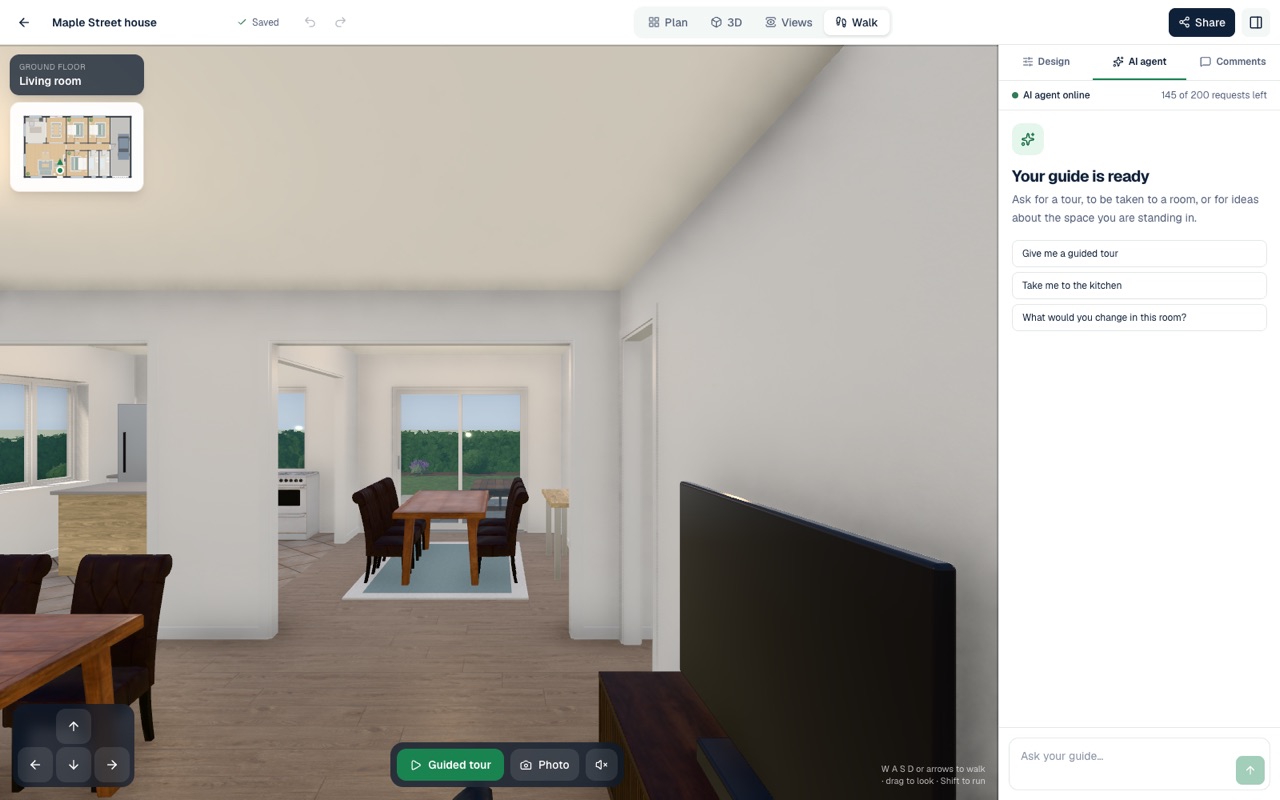
You have a room you would like to change and a photo of it on your phone. AI Plan Creator's photo studio turns that photo into a picture of the same room in another style, furnished from empty, or cleared of its furniture. It is worth knowing exactly what it does before you start: it makes a new picture with an AI image model. That is a quick way to see an idea, and it is not a plan or a measurement of your room.
Three things it can do with a room
Under What should the AI do? the photo studio offers three choices for a room.
- Restyle a room. The furniture, textiles, lighting and decor change to suit the style you choose. The AI is told to keep the walls, windows, doors, ceiling and camera angle exactly where they are.
- Stage an empty room. Furniture, rugs, lighting, art and plants that fit the room's size and use are added to a bare room, and the AI is told to leave the floors, wall colours and fixed fittings alone. AI virtual staging covers this one in full, and what virtual staging costs how staged photos go in a listing.
- Empty a room. The furniture, rugs, decor and clutter are taken out, and what they hid is filled in. The AI is told to keep the floors, wall finishes, fixed lighting and built-in fittings.
There are two more choices for outside: Garden, which redesigns the planting, lawn, paving, paths and outdoor furniture in one of eight garden styles (see AI garden design), and Building front, which updates the cladding, colours, roof finish, entrance and front planting of a house (see AI house design).
The steps
- Open Photo studio from the app's menu. You need an AI Plan Creator account; a free one will do.
- Drop a photo onto the page, or browse for one. It can be a JPEG, PNG or WebP, up to 10 MB.
- Choose what the AI should do.
- Choose a style. There are 25, from Eclectic and Industrial to Japandi, Coastal, New Zealand Contemporary and Modern Farmhouse. Empty a room needs no style.
- If you like, write Extra wishes of up to 600 characters: "keep the fireplace, warmer lighting, add a reading corner".
- Press the button. It can take a minute.
- Drag the slider across the result to compare before and after. Download the picture, or come back to it later: your latest pictures are listed under Earlier transformations.
What it keeps, and what it cannot do
The photo studio redraws the whole picture to the instructions it is given. That makes it good at changing the look of a room and of no use for some other jobs, so here they are plainly.
- It does not change the layout. The AI is told not to move the walls, windows, doors or camera. It is not a way to knock two rooms into one, add a window or see the room from another angle.
- It does not measure anything. There are no dimensions in the picture, and the furniture in it is drawn to look right, not sized to fit. A sofa that looks perfect may not fit the wall.
- It does not give you a shopping list. The furniture and finishes are not products, and the picture comes with no names, codes or paint references.
- It has no brush. You cannot pick out one part of the photo to change. You choose an action, a style and any wishes, and the AI redraws the picture.
- It takes your wishes as preferences. Extra wishes are passed on as your design preferences, not as commands, so a result may follow them closely, loosely or not at all. Trying again, or trying another style, can give a quite different picture.
Read every result as an impression of an idea. AI can make mistakes, and a detail such as a light fitting, a skirting board or the view through a window can come back changed.
Changing the wall colour in a photo
This is one of the things people most often want, so it is worth being exact. The photo studio has no colour picker. Restyle a room keeps the walls where they are, but some styles bring their own palette with them, so the walls may come back a new colour even if you did not ask. If you want a particular colour, say so in Extra wishes, for example "paint the walls a warm white", and the AI will take it as a preference. Stage an empty room is told not to change the wall colours at all.
Do not choose paint from a picture on a screen. The colour depends on the light in the photo, on your screen and on the AI, so treat it as a direction, and try a sample pot on your own wall before you buy.
For exact control, work on a design instead. In the editor, select a room to choose its wall paint from swatches and its floor from oak, walnut, tile, marble, concrete, carpet or terracotta.
Getting a better result
- Take a straight, level photo in daylight, with the floor and at least two walls in view.
- Clear the room first, or use Empty a room before you restyle it: the less clutter, the less the AI has to guess.
- Ask for one or two things at a time. A short wish is easier to follow than a long one.
- Change the style before you rewrite the wishes. When a result is wrong in many ways, another style often tells you more than a longer instruction.
What it costs
Every picture the photo studio makes uses one of your plan's AI images: 2 a month on the Free plan, 30 on Premium and 250 on Pro, counted from the 1st of each month. On the Free plan each picture also uses 5 of the day's 20 AI credits. Only a picture that comes back is counted, and the studio shows how many you have left. Premium can be tried free for 14 days, with a card to start it and nothing charged if you cancel before the trial ends, and the prices are on the pricing page, in your own currency.
Your photo is kept in your account with the picture made from it, and it is sent to Google's Gemini image model to make that picture. The privacy policy says more.
From a picture to a plan
A picture shows how a room could look. When you want to know whether it works, at real sizes, draw the room as a plan or design the whole home, and furnish it with Stage this room, which places every piece at its real size without using an AI request. In the 3D view, AI render then turns a view of that furnished room into a photoreal picture, for one AI image, with the AI asked to keep every piece where you put it.
AI interior design covers furnishing a plan, and the store has finished designs to start from. To see how a plan becomes a 3D model you can walk through, read Floor plan to 3D model, and for the garden outside the room, Landscaping ideas for New Zealand gardens.